Switch input - Rotary Encoder
.
Plugin details
Type: Switch input
Name: Rotary Encoder
Status ESP32: NORMAL CLIMATE
Status ESP8266: NORMAL CLIMATE
GitHub: P059_Encoder.ino
Maintainer: .
Used libraries: .
Introduction
A rotary encoder can be used in many applications that require precise (unlimited) rotation indication. A general use is to have the encoder set the volume of a speaker or position of a stepper motor.
Supported hardware
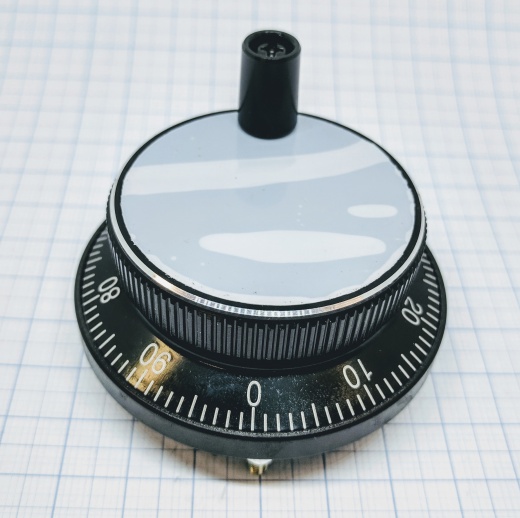
A pulse wheel used for CNC machines.
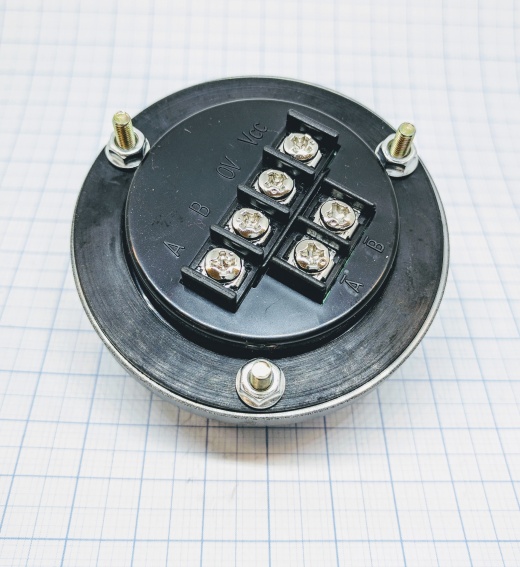
.
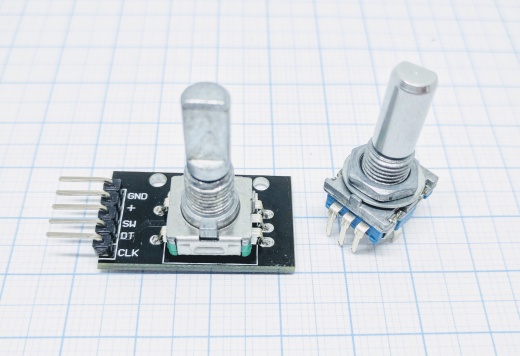
A rotary encoder used for volume and GUI interaction (press the knob for switch input)
.
Wiring
ESP            Encoder
GPIO    <-->   A or CLK
GPIO    <-->   B or DT
GPIO*   <-->   I (optional)

Power
3.3V    <-->   VCC/+
GND     <-->   GND/V0
*if any is available, used to “0” the counter after each turn.
Switch A/B if the encoder is counting backwards!
A and B is sometimes labeled CLK and DT, other labels might also be used. Test and see what works for your encoder. If the rotary encoder have A- and B- ports it is ideal to use them since the pulses are negative and doesn’t strain the ESP unit’s power. Using a positive signal is not a problem though.
Use only GPIO pins that support interrupts, so f.e. GPIO-16 on ESP8266 can’t be used.
Device
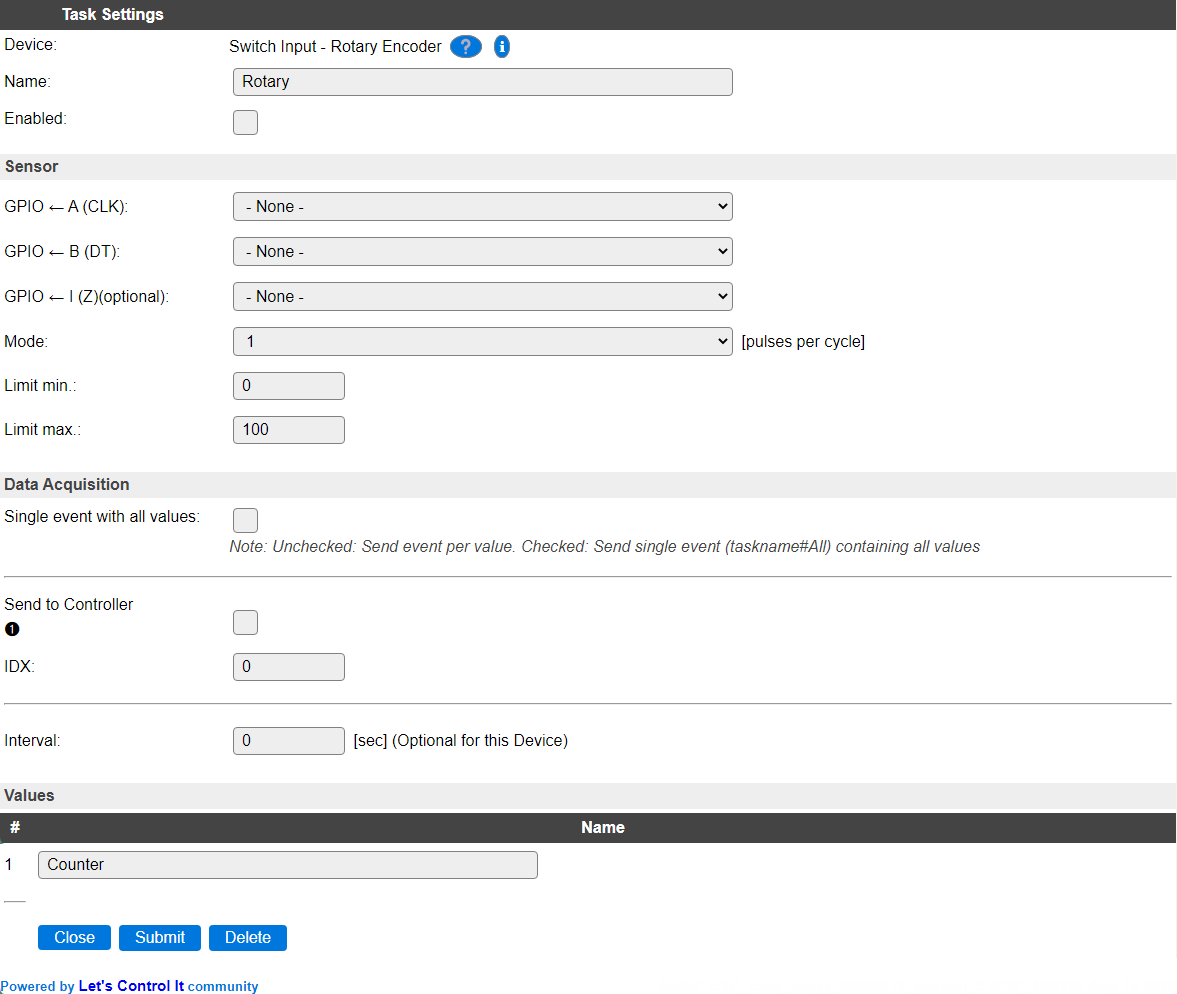
Task settings
Name The name of the task. This should be unique for all devices that are configured. (Initially empty)
Enabled For the device to work it has to be enabled. When checked, the device will be started as soon as the ESP starts. If desired, the device can also be enabled from f.e. a rule by using the
TaskEnable,<tasknr>orTaskEnable,<taskname>command, or disabled using the correspondingTaskDisable,<tasknr>|<taskname>commands.
Sensor
GPIO <- A (CLK): Input pin for the A or CLK wire.
GPIO <- B (DT): Input pin for the B or DT wire.
GPIO <- I (Z)(optional): Optional input pin for the reset signal from the rotary knob, to reset the counter when it passes the 0 mark.
Mode: Sets the “resolution” of the turning on the knob. 1 pulse per cycle is “slowest”/finest and 4 pulses per cycle is the “fastest”/coarsest.
Limit min: The lowest value that the counter will go to. Observe that if you have the counter on a value below this limit the counter will climb above this value but not below it once it has reached the min limit.
Limit max: The highest value that the counter will go to. As with the min limit if the counter is above this limit it will descend to the max level but never climb over it once reached below it.
Data Acquisition
This group of settings are standard available configuration items.
Single event with all values: When this setting is enabled, all available values will be sent in a single event
<TaskName>#All, with all values in order as arguments to the event.Show derived values: When checked, the Devices overview page, and the
/jsonendpoint (used for updating the Devices overview page) will include any Derived values as defined. See theTaskValueSetDerivedandTaskValueSetPresentationcommands.Event & Log derived values: When checked, the Derived values will be generated as Events, to be handled in Rules, and sent to logging devices like the Syslog server and/or SD-card logging.
(The derived values options are only available if String variables feature is included in the build.)
Send to Controller: Select the Controller(s) to send the Values to, either on a
TaskRuncommand applied to the task, or on an Interval time action.
Send to Controller is only visible when one or more Controllers are configured.
Depending on the controller capabilities, some configuration settings may be shown:

All configured Controllers are shown here, including the enabled or disabled state (multiple Controllers can be enabled, only a single MQTT Controller can be enabled at one time!).
For each controller the user can select wether the data should be sent on each Interval (or explicit TaskRun).
For the Domoticz controllers the value index (IDX) has to be configured.
For some controllers, like Home Assistant/openHAB, there are extra options available.
Group: This represents the group id to combine all values from multiple tasks into a single grouped-device during MQTT AutoDiscovery. Groups, by design, can span multiple ESPEasy devices, if desired, as long as the Task/Valuename combinations are unique. If a group should only combine Tasks from a single ESPEasy unit, the group id should be unique across multiple ESPEasy units. The group description, default Group <n>, can be adjusted in Home Assistant. If the Group value matches the current Unit nr, the Unit name,
%sysname%, is used instead of Group <nr>.Retained: For MQTT Controllers, this setting can be enabled to send the values for the current task with the Retain flag set. The Publish Retain flag in the Controller settings will override this by sending all task values with Retain flag enabled.
Send derived: This checkbox determines if any configured Derived values should also be sent to the controller (and included in the AutoDiscovery if that’s available and enabled).
Resend MQTT Discovery: When checked, will start a resend of the MQTT Discovery process for this task after a random delay, when Submit is clicked, so any changed settings will be updated in the MQTT broker. This setting is only available if the controller is enabled, the Auto Discovery feature is available and enabled for the controller. This setting is not stored.
Other controllers, like f.e. FHEM HTTP, do not support additional settings besides the checkbox to enable sending the data.
Interval By default, Interval will be set to 0 sec for this plugin, as this setting is optional. It is the frequency used to read sensor values and send these to any Controllers configured for this device.
Values
The counted value is available in Counter.
Commands available
Command Syntax |
Extra information |
|---|---|
encwrite,<count>> |
Set the Counter value, and generate an event for it, as if a pulse was received.
|
Change log
Changed in version 2.0: …
added Major overhaul for 2.0 release.
Added in version 1.0: …
added Initial release version.