Keypad - CardKB I2C Keyboard
M5Stack CardKB I2C Keyboard
Plugin details
Type: Keypad
Name: CardKB I2C Keyboard
Status ESP32: ESP32
Status ESP8266: .
GitHub: P140_CardKB.ino
Maintainer: tonhuisman
Used libraries: .
Description
M5Stack CardKB I2C ASCII input keyboard support.
Can be used to enter commands as if typing via USB serial to the device. It can also be used as input for a GUI, built using the AdaGFX_helper graphics commands, or a menu/button configuration via the Extended Touch panel, by handling the Key values in Rules.
Only printable ASCII characters (a-z, A-Z, 0-9, space and punctuation) will be appended to the input buffer. The Del key can be used for corrections (backspace), and Enter to submit the input. Other keys can be handled in Rules if Send event on keypress is enabled.
Configuration

Name A unique name should be entered here.
Enabled The device can be disabled or enabled. When not enabled the device should not use any resources.
I2C Options
The available settings here depend on the build used, and configuration options set. At least the Force Slow I2C speed option is available, but selections for the I2C Multiplexer can also be shown. For details see the I2C Bus page
Device Settings
Execute input as command: When enabled (default: On), input typed on the keyboard will be executed as a command when the
Enterkey is pressed, and corrections can be made by using theDelkey, working as Backspace. When disabled, input will not be stored in the buffer (unless Accept input only is enabled), but should be handled in Rules by enabling Send event on keypress. After pressingEnterthe buffer will be cleared.Accept input only: When enabled, it will accept input up until
Enteris pressed, and will send events as if Send event on keypress was enabled. The buffer will also be cleared. If Execute input as command is also enabled, the input is also processed as a command. This is usually not the desired combination.Send event on keypress: When enabled will generate events with the ASCII code for the key. If Execute input as command or Accept input only are enabled, also the current buffer Length and Buffer content will be generated as events.
Buffer
If the plugin is enabled, the Current buffer content is shown in this section. The value will not be automatically updated when adding or deleting characters to/from the buffer while the page is open.

Data Acquisition
This group of settings are standard available configuration items.
Single event with all values: When this setting is enabled, all available values will be sent in a single event
<TaskName>#All, with all values in order as arguments to the event.Show derived values: When checked, the Devices overview page, and the
/jsonendpoint (used for updating the Devices overview page) will include any Derived values as defined. See theTaskValueSetDerivedandTaskValueSetPresentationcommands.Event & Log derived values: When checked, the Derived values will be generated as Events, to be handled in Rules, and sent to logging devices like the Syslog server and/or SD-card logging.
(The derived values options are only available if String variables feature is included in the build.)
Send to Controller: Select the Controller(s) to send the Values to, either on a
TaskRuncommand applied to the task, or on an Interval time action.
Send to Controller is only visible when one or more Controllers are configured.
Depending on the controller capabilities, some configuration settings may be shown:

All configured Controllers are shown here, including the enabled or disabled state (multiple Controllers can be enabled, only a single MQTT Controller can be enabled at one time!).
For each controller the user can select wether the data should be sent on each Interval (or explicit TaskRun).
For the Domoticz controllers the value index (IDX) has to be configured.
For some controllers, like Home Assistant/openHAB, there are extra options available.
Group: This represents the group id to combine all values from multiple tasks into a single grouped-device during MQTT AutoDiscovery. Groups, by design, can span multiple ESPEasy devices, if desired, as long as the Task/Valuename combinations are unique. If a group should only combine Tasks from a single ESPEasy unit, the group id should be unique across multiple ESPEasy units. The group description, default Group <n>, can be adjusted in Home Assistant. If the Group value matches the current Unit nr, the Unit name,
%sysname%, is used instead of Group <nr>.Retained: For MQTT Controllers, this setting can be enabled to send the values for the current task with the Retain flag set. The Publish Retain flag in the Controller settings will override this by sending all task values with Retain flag enabled.
Send derived: This checkbox determines if any configured Derived values should also be sent to the controller (and included in the AutoDiscovery if that’s available and enabled).
Resend MQTT Discovery: When checked, will start a resend of the MQTT Discovery process for this task after a random delay, when Submit is clicked, so any changed settings will be updated in the MQTT broker. This setting is only available if the controller is enabled, the Auto Discovery feature is available and enabled for the controller. This setting is not stored.
Other controllers, like f.e. FHEM HTTP, do not support additional settings besides the checkbox to enable sending the data.
Interval Is not available for this plugin, events will only be generated when the Send event on keypress setting is enabled, or Accept input only is enabled and Enter is pressed.
Values
The current values are available in Key, Length and Buffer, limited to Key if Execute input as command and Accept input only are disabled. No decimals, formula or charting options are available.
To handle Buffer in Rules completely, the event handler has to be decorated with an asterisk, *, to enable the possible non-numeric content of the buffer to be passed to the event handler:
On CardKB#Buffer* Do
  LogEntry,'CardKB: Current input buffer: %eventvalue1%'
Endon
When enabling Single event with all values, this is’t needed, as the first event argument Key will always be numeric.
On CardKB#All Do
  LogEntry,'CardKB: Last key: %eventvalue1%, Length: %eventvalue2%, Input buffer: %eventvalue3%'
Endon
When Execute input as command is enabled, the current buffer content is shown in the Devices overview page:
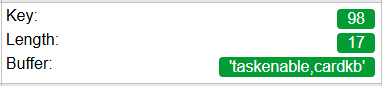
(The buffer content is only quoted when needed, so it can be passed as a single argument to event handlers.)
Commands
Command Syntax |
Extra information |
|---|---|
CardKB,exec,<0|1> |
Enable (
1) or disable (0) the Execute input as command setting. Settings are not saved! |
CardKB,input,<0|1> |
Enable (
1) or disable (0) the Accept input only setting. Settings are not saved! |
CardKB,events,<0|1> |
Enable (
1) or disable (0) the Send events on keypress setting. Settings are not saved! |
CardKB,clear |
Will clear the current content of the buffer.
|
Change log
Changed in version 2.0: added 2025-02-08 Initially added.