Environment - Atlas Scientific EZO pH ORP EC DO HUM
.
Plugin details
Type: Environment
Name: Atlas Scientific EZO pH ORP EC DO HUM
Status ESP32: CLIMATE
Status ESP8266: CLIMATE
GitHub: P103_Atlas_EZO_pH_ORP_EC_DO.ino
Maintainer: TD-er tonhuisman
Used libraries: .
Datasheet: https://atlas-scientific.com/files/pH_EZO_Datasheet.pdf
Description
Several Atlas Scientific EZO sensors are supported by this plugin. Only I2C communication is supported, some sensors use that by default, and most other sensors can be re-configured from RS232 to I2C communication.
Currently there is support for:
pH: Potential of Hydrogen (Acidity)
ORP: Oxidation Reduction Potential
EC: Electrical Conductivity
DO: Dissolved Oxigen
HUM: Humidity (Can also provide Temperature and Dewpoint measurements)
Device configuration
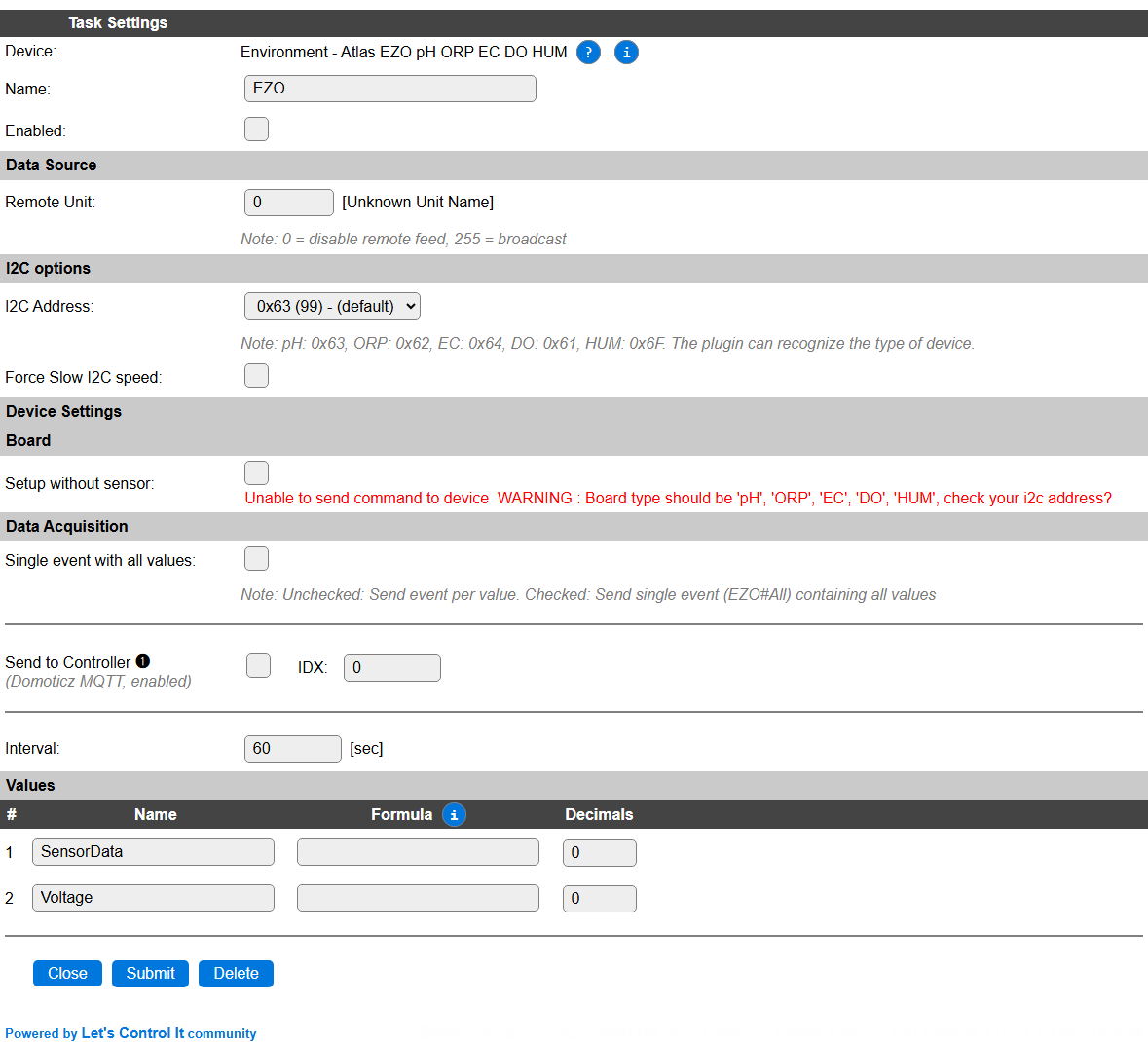
Name: A unique name should be entered here.
Enabled: The device can be disabled or enabled. When not enabled the device should not use any resources.
I2C options
The available settings here depend on the build used. At least the Force Slow I2C speed option is available, but selections for the I2C Multiplexer can also be shown. For details see the I2C Bus page
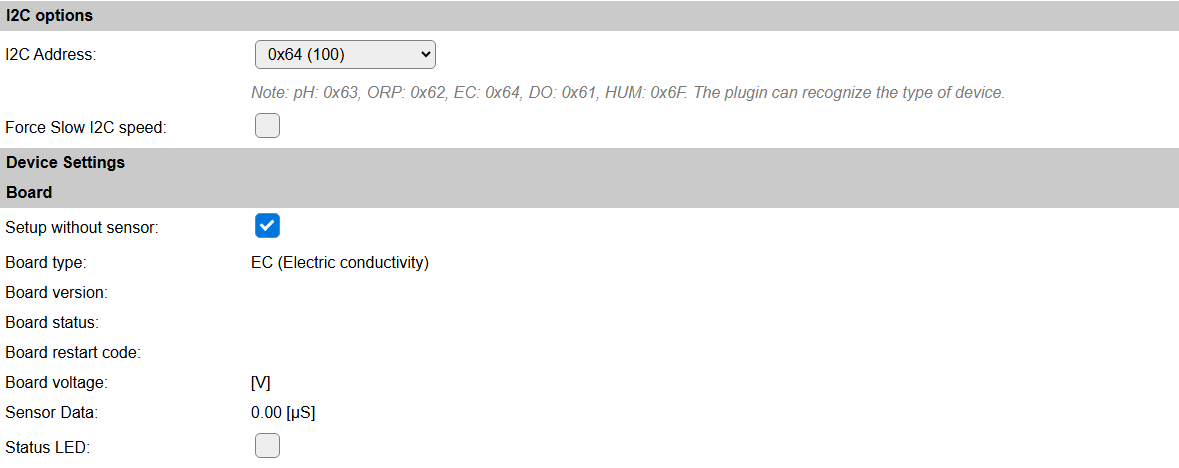
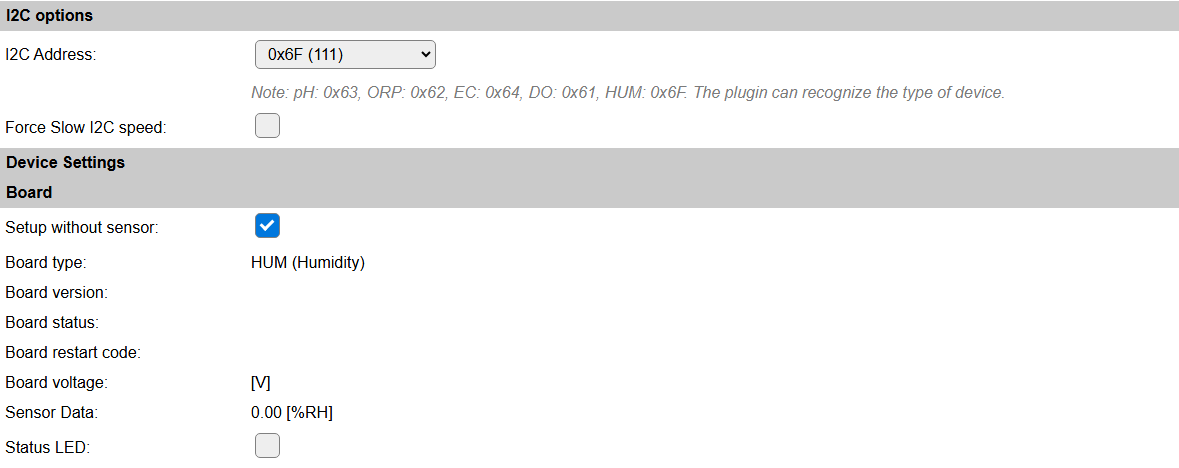
When loading the Device configuration page, the plugin will try to detect the type of sensor connected based on the selected I2C addresses. If no sensor is found, the message in red will be shown.
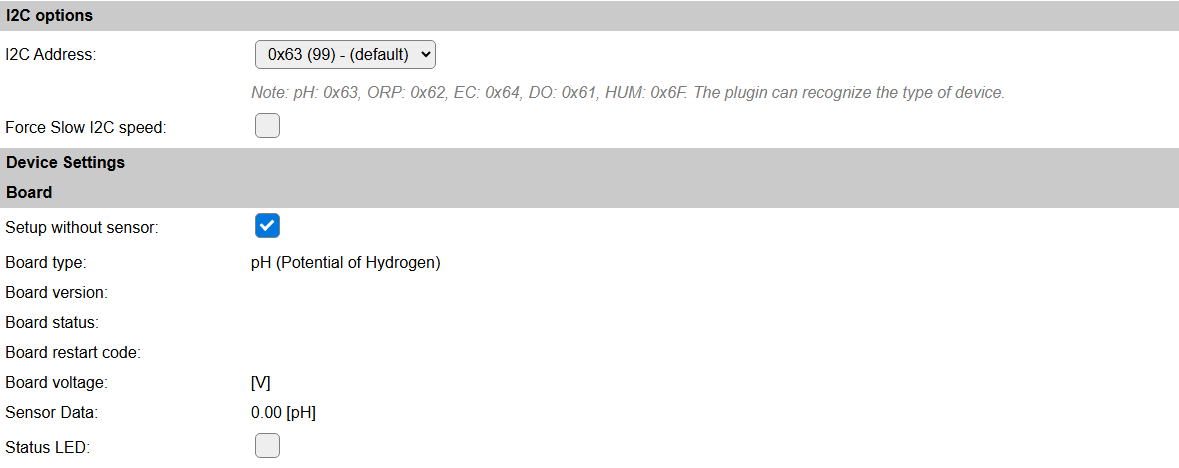
If no sensor is connected, the configuration can still be shown by selecting the Setup without sensor checkbox, choosing the I2C address for the intended sensor, and submitting the page.
Device settings
Board
This section shows relevant information, obtained from the sensor if actually connected.
Status LED: The status led on the sensor can be enabled or disabled, using this checkbox.
For each board there are different device parameters available, but when using the device simulation, no actual device information is available, so no data is shown.
Board pH
pH Calibration
For the pH sensor, some calibration may be needed. The simulated device doesn’t have any calibration data set.
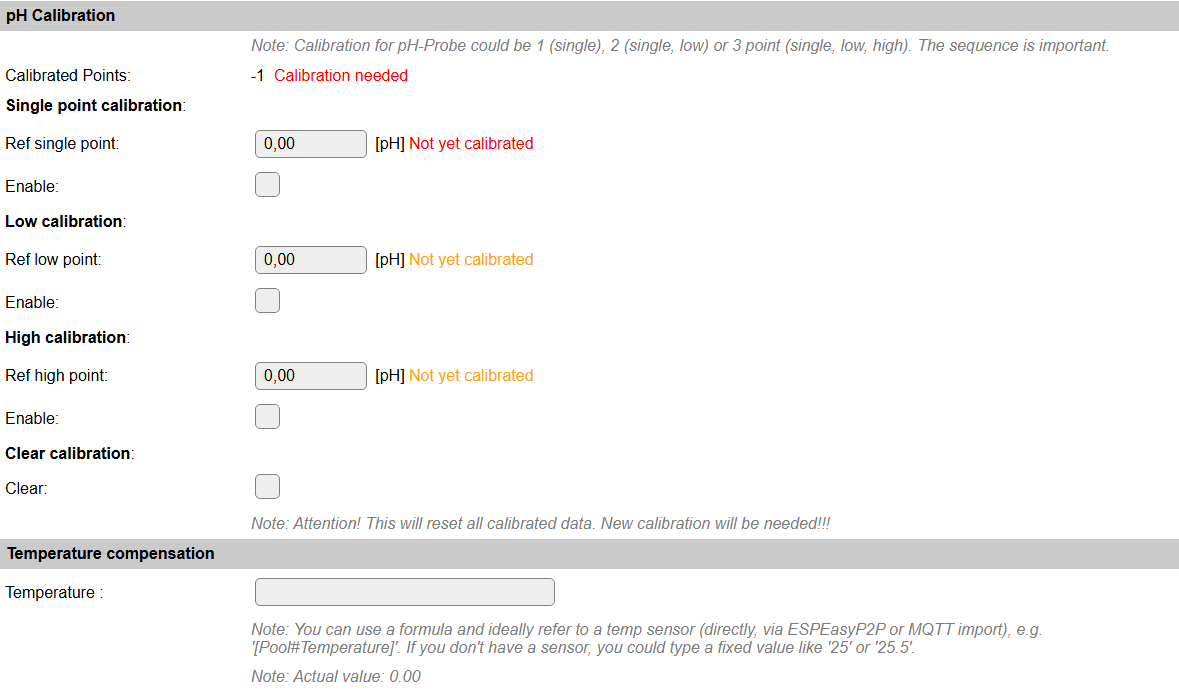
For compensation of temperature, either a fixed temperature or a value from a connected temperature sensor can be selected. For this connected temperature sensor, the [<Taskname>#<valuename>] notation can be used. This will will be evaluated when the value is needed.
Board ORP
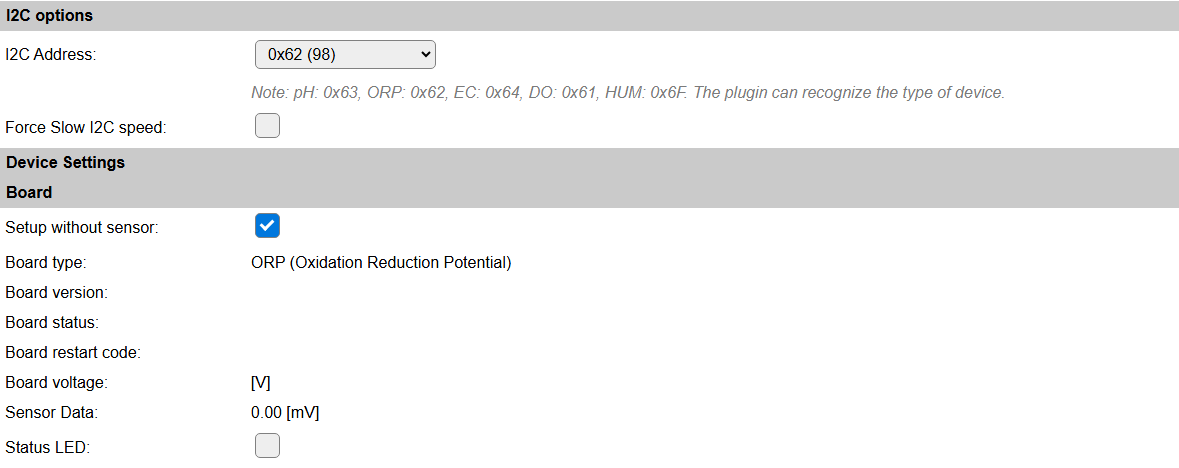
ORP Calibration
For the ORP sensor, some calibration may be needed. The simulated device doesn’t have any calibration data set.
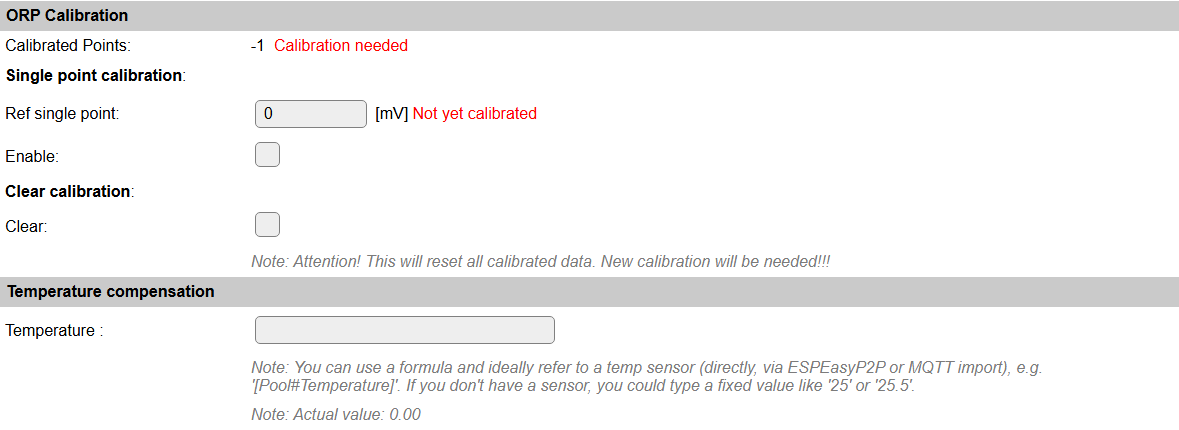
For compensation of temperature, either a fixed temperature or a value from a connected temperature sensor can be selected. For this connected temperature sensor, the [<Taskname>#<valuename>] notation can be used. This will will be evaluated when the value is needed.
Board EC
EC Calibration
For the EC sensor, some calibration may be needed. The simulated device doesn’t have any calibration data set.
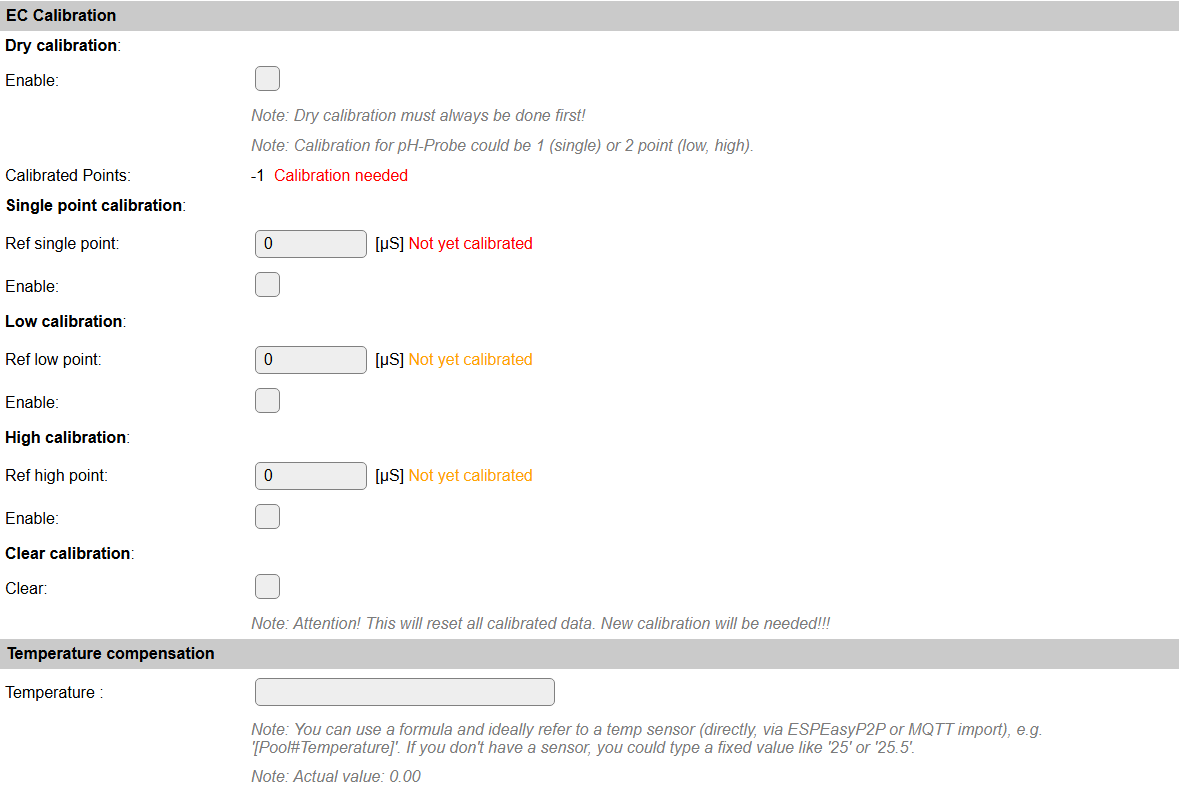
For compensation of temperature, either a fixed temperature or a value from a connected temperature sensor can be selected. For this connected temperature sensor, the [<Taskname>#<valuename>] notation can be used. This will will be evaluated when the value is needed.
Board DO
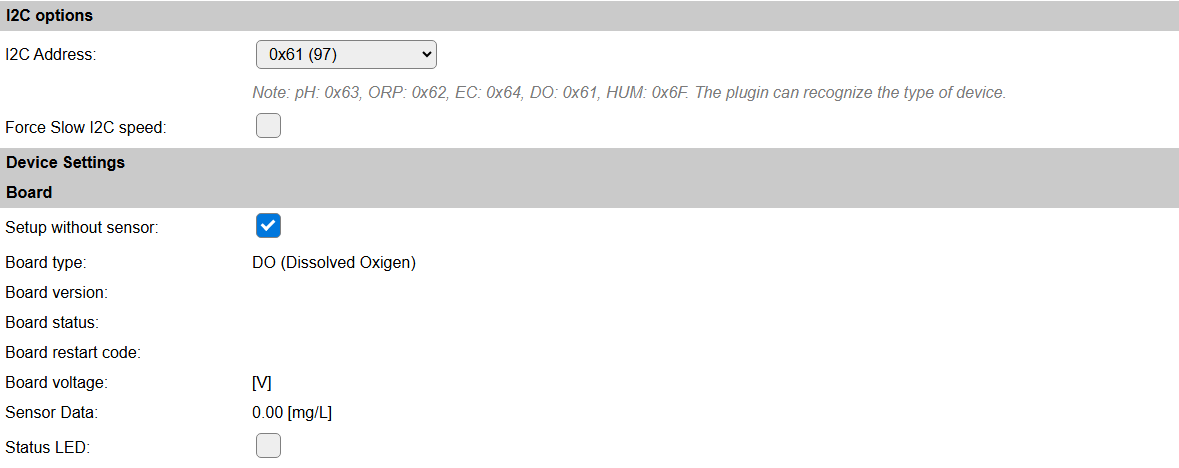
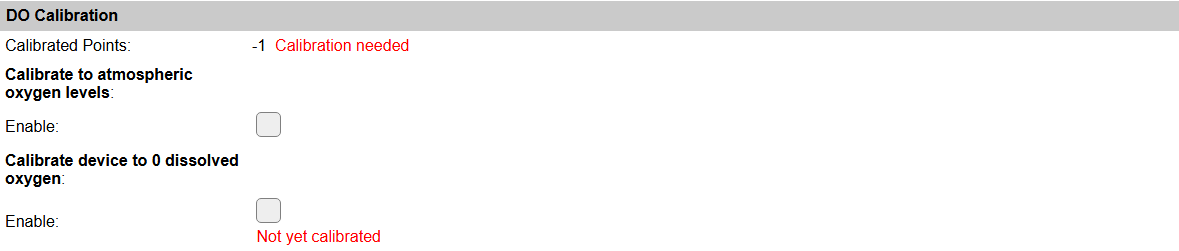
DO Calibration
For the DO sensor, some calibration may be needed. The simulated device doesn’t have any calibration data set.
Board HUM
HUM Calibration
For the HUM sensor, no calibration can be adjusted, but options to enable the Temperature and/or Dew-point measurements are available.

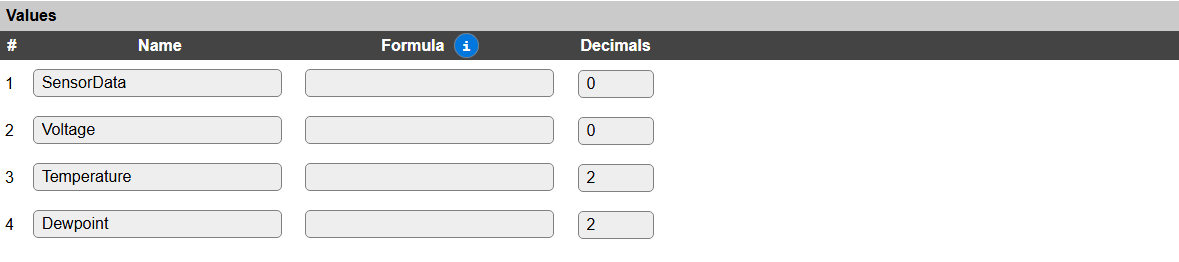
To make the Temperature and Dew-point available for use, extra values are available:
Data Acquisition
This group of settings are standard available configuration items.
Single event with all values: When this setting is enabled, all available values will be sent in a single event
<TaskName>#All, with all values in order as arguments to the event.Show derived values: When checked, the Devices overview page, and the
/jsonendpoint (used for updating the Devices overview page) will include any Derived values as defined. See theTaskValueSetDerivedandTaskValueSetPresentationcommands.Event & Log derived values: When checked, the Derived values will be generated as Events, to be handled in Rules, and sent to logging devices like the Syslog server and/or SD-card logging.
(The derived values options are only available if String variables feature is included in the build.)
Send to Controller: Select the Controller(s) to send the Values to, either on a
TaskRuncommand applied to the task, or on an Interval time action.
Send to Controller is only visible when one or more Controllers are configured.
Depending on the controller capabilities, some configuration settings may be shown:

All configured Controllers are shown here, including the enabled or disabled state (multiple Controllers can be enabled, only a single MQTT Controller can be enabled at one time!).
For each controller the user can select wether the data should be sent on each Interval (or explicit TaskRun).
For the Domoticz controllers the value index (IDX) has to be configured.
For some controllers, like Home Assistant (openHAB) MQTT, there are extra options available.
Group: This represents the group id to combine all values from multiple tasks into a single grouped-device during MQTT AutoDiscovery. Groups, by design, can span multiple ESPEasy devices, if desired, as long as the Task/Valuename combinations are unique. If a group should only combine Tasks from a single ESPEasy unit, the group id should be unique across multiple ESPEasy units. The group description, default Group <n>, can be adjusted in Home Assistant. If the Group value matches the current Unit nr, the Unit name,
%sysname%, is used instead of Group <nr>.When Group is used, the Discovery unique id, by default, doesn’t include the taskname, causing devices with the same Value name in the same group to be overwritten in the MQTT broker. By setting the checkbox MQTT Discover, Group incl. Taskname on the Tools/Advanced page, the unique id will be made ‘more unique’ by including the Taskname. (Not enabled by default for backward compatibility).
Retained: For MQTT Controllers, this setting can be enabled to send the values for the current task with the Retain flag set. The Publish Retain flag in the Controller settings will override this by sending all task values with Retain flag enabled.
Send derived: This checkbox determines if any configured Derived values should also be sent to the controller (and included in the AutoDiscovery if that’s available and enabled).
Resend MQTT Discovery: When checked, will initiate a resend of the MQTT Discovery process for this task after a random delay after Submit is clicked, so any changed settings will be updated in the MQTT broker. This setting is only available if the controller is enabled, the Auto Discovery feature is available and enabled for the controller. This setting is not stored.
Other controllers, like f.e. FHEM HTTP, do not support additional settings besides the checkbox to enable sending the data.
Interval By default, Interval will be set to 60 sec. The data will be collected and optionally sent to any configured controllers using this interval.
Values
For all sensors, the SensorData and Voltage values are available. For the HUM Humidity sensor, also Temperature and Dew-point values are available, but have to be enabled in options to return a sensible value.
In selected builds, per Value Stats options are available, that when enabled, will gather the measured data and present most recent data in a graph, as described here: Task Value Statistics:
Change log
Changed in version 2.0: …
added 2023-10-17 Add HUM sensor
added 2020-04-25