Communication - Victron VE.Direct
Victron VE.Direct protocol reader
Plugin details
Type: Communication
Name: Victron VE.Direct
Status ESP32: ENERGY
Status ESP8266: .
GitHub: P176_VE_Direct.ino
Maintainer: tonhuisman
Used libraries: .
Supported hardware
Victron Energy devices supporting the VE.Direct protocol
Configuration

Name In the Name field a unique name should be entered.
Enabled When unchecked the plugin is not enabled.
Sensor
Device Settings
Baud Rate / Serial config: See Serial helper configuration, above.
RX Buffersize: The buffer to be used for ESPEasySerial, default and minimum is 128 bytes. Can be expanded up to 2048 bytes if processing of the received data takes too much time and data gets discarded.
Ignore data on checksum error: The protocol includes a checksum calculation, and when this fails, the data is probably unreliable, and should better be dismissed.
Events only on updated data: With this checkbox enabled, events and outgoing data to Controllers is only sent if at least 1 new packet is received since the last Interval or TaskRun. When disabled, data is sent out every Interval, when data is available (so at least a single packet is successfully received). This option is only available if Checksum processing is included in the build.
Led
Led pin: The GPIO pin a Led is connected to. To enable a data is being processed activity led.
Led inverted: Inverts the on/off state for the Led.
Logging
Enable logging (for debug): When enabled, all received data, and the current checksum counter, are logged at INFO level, to validate if, and what, data is being received. During normal operation, this should be disabled.
Quiet logging (reduces logging): During normal operation there is some minimal logging available, informing about successfully received packets. This logging is suppressed when Quiet logging is enabled.
Data Acquisition
This group of settings are standard available configuration items.
Single event with all values: When this setting is enabled, all available values will be sent in a single event
<TaskName>#All, with all values in order as arguments to the event.Show derived values: When checked, the Devices overview page, and the
/jsonendpoint (used for updating the Devices overview page) will include any Derived values as defined. See theTaskValueSetDerivedandTaskValueSetPresentationcommands.Event & Log derived values: When checked, the Derived values will be generated as Events, to be handled in Rules, and sent to logging devices like the Syslog server and/or SD-card logging.
(The derived values options are only available if String variables feature is included in the build.)
Send to Controller: Select the Controller(s) to send the Values to, either on a
TaskRuncommand applied to the task, or on an Interval time action.
Send to Controller is only visible when one or more Controllers are configured.
Depending on the controller capabilities, some configuration settings may be shown:

All configured Controllers are shown here, including the enabled or disabled state (multiple Controllers can be enabled, only a single MQTT Controller can be enabled at one time!).
For each controller the user can select wether the data should be sent on each Interval (or explicit TaskRun).
For the Domoticz controllers the value index (IDX) has to be configured.
For some controllers, like Home Assistant/openHAB, there are extra options available.
Group: This represents the group id to combine all values from multiple tasks into a single grouped-device during MQTT AutoDiscovery. Groups, by design, can span multiple ESPEasy devices, if desired, as long as the Task/Valuename combinations are unique. If a group should only combine Tasks from a single ESPEasy unit, the group id should be unique across multiple ESPEasy units. The group description, default Group <n>, can be adjusted in Home Assistant. If the Group value matches the current Unit nr, the Unit name,
%sysname%, is used instead of Group <nr>.Retained: For MQTT Controllers, this setting can be enabled to send the values for the current task with the Retain flag set. The Publish Retain flag in the Controller settings will override this by sending all task values with Retain flag enabled.
Send derived: This checkbox determines if any configured Derived values should also be sent to the controller (and included in the AutoDiscovery if that’s available and enabled).
Resend MQTT Discovery: When checked, will start a resend of the MQTT Discovery process for this task after a random delay, when Submit is clicked, so any changed settings will be updated in the MQTT broker. This setting is only available if the controller is enabled, the Auto Discovery feature is available and enabled for the controller. This setting is not stored.
Other controllers, like f.e. FHEM HTTP, do not support additional settings besides the checkbox to enable sending the data.
Interval By default, Interval will be set to 0 sec. In this situation, no data is sent automatically, and no events are generated. The data will still be collected and can be retrieved for use on a display, or further processing from other rules. When an Interval is set the data can be optionally sent to any configured controllers and either a single
#Allevent or an event per value will be generated. As an alternative, theTaskRuncommand can be used to publish the data at any moment.
Values
The plugin provides all values that are received from a VE.Direct device. By entering the Name of such value here, that value will be made available. Some values are text-only, and can not be used in this way, but from rules these values can still be sent to a controller or shown on a display.
The number of decimals to use for displaying in the Devices overview and sending to Controllers, can be selected, and an optional formula can be applied to the available value, f.e. for applying some kind of correction.
In selected builds, per Value Stats options are available, that when enabled, will gather the measured data and present most recent data in a graph, as described here: Task Value Statistics:
Values that are not configured in the Values section can still be retrieved from rules, or in a display configuration, by using the regular [<TaskName>#<ValueName>] notation. The <TaskName> is the name as set in the Name field, above, and the <TaskValue> is the name of the data item, available from the VE.Direct device. These names are not case-sensitive.
An overview of the data is shown when the task is enabled, and data is received (successfully) from a VE.Direct device.
Example data
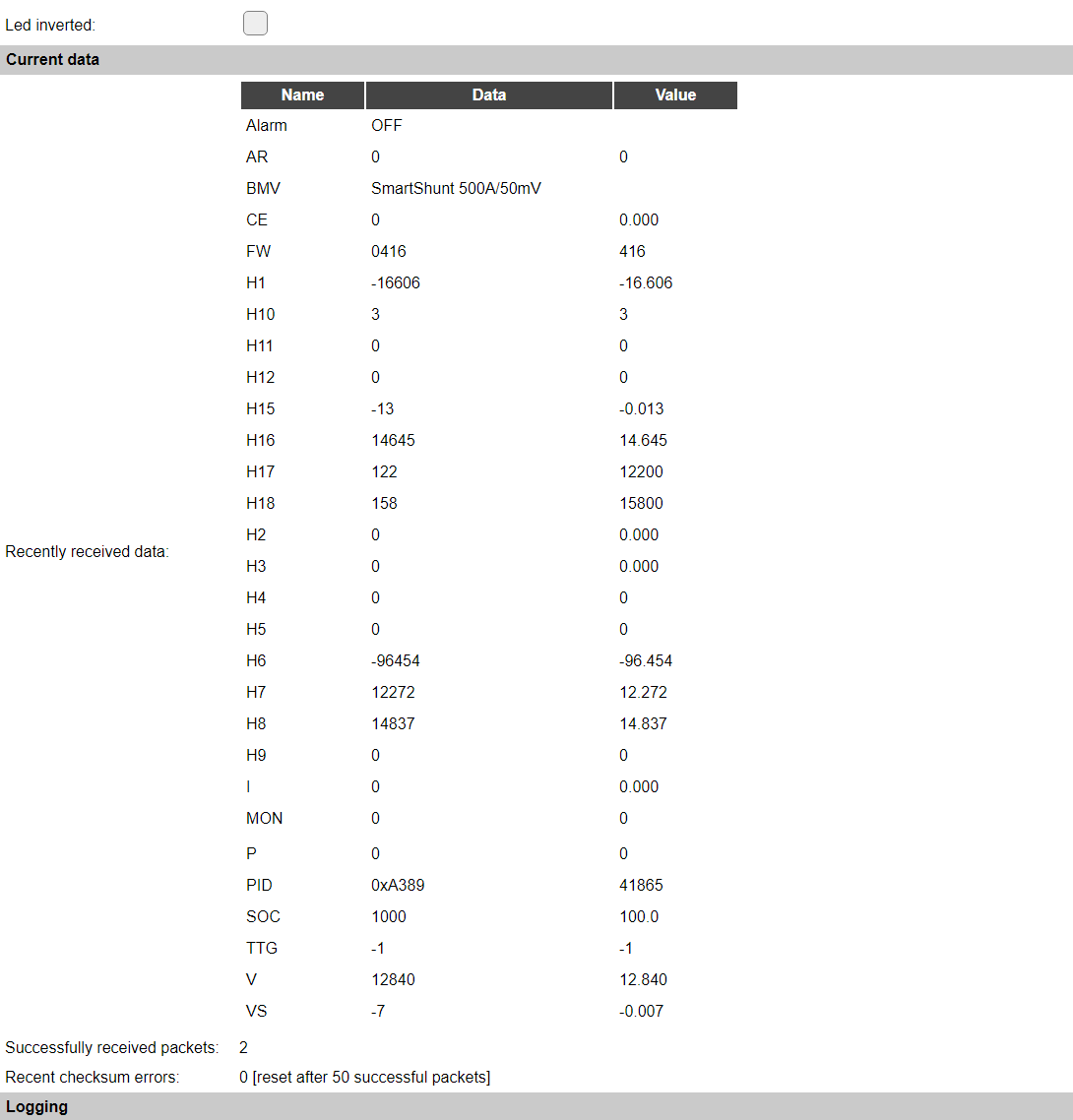
This example shows the data as can be received from a VE.Direct device.
The Name column is what should be used in the Values fields, or when as a <ValueName> from rules or in a display configuration. The exact meaning and unit of each field can be found in the VE.Direct protocol documentation, available from Victron Energy.
The Data column shows the actual data as received. If the checksum validation is enabled, this column may be empty if the checksum could not be verified, like the first (possibly incomplete) packet, but as the frequency of packets is rather high, this column should not often (or long) be empty.
The Value column shows a factored result based on the value, as mV is not always very useful, so that’s converted to V, mA to A, Wh to kWh, etc.
For items that use ON and OFF (or On and Off for older firmwares) as Data, these will be available as 1 and 0 respectively, so they can be used as Values. If needed, a transformation like [VE.Direct#Alarm#O] can be used to present the value as ON/OFF for 1/0. Adding the C justification, like [VE.Direct#Alarm#O#C], will be presented as On/Off.
It shows that it has received 2 packets, but as a packet only contains a part of the available data, and a next packet another part, etc. there’s no fixed relation to the amount of samples, and the number of packets received. Some devices may send all data in a single packet, other devices may need 3 or even 4 packets to send all available data.
Also, the number of checksum errors is shown, this counter is automatically reset after receiving 50 consecutive correct packets.
Get Config values
All data values received can be retrieved by using the [<taskname>#<data_name>] syntax. To get the success count and error count, varables [<taskname>#successcount] and [<taskname>#errorcount] are available, and also the [<taskname>#updated] value, to see if data was updated since the last call for this variable (returns 0/1). So this should only be called once for evaluation. The errorcount value is reset after 50 succesful received packets, so after receiving 50 successful packets it will return 0.
Change log
Changed in version 2.0: …
added 2024-10-27: Initial release.